
Accepting the Invitation
- Look for an email from Box or from our team with the subject line: “You’ve been invited to collaborate on Box.”
- Click the blue Accept Invitation button in the email.
- If you already have a Box account associated with your email, you’ll just log in.
- If you don’t have one yet, you’ll be prompted to create a free account.
Creating Your Account
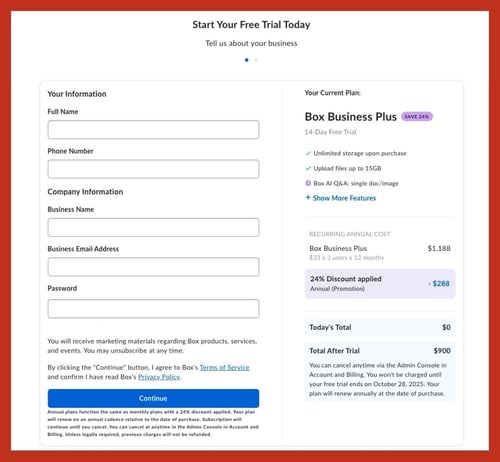
- Enter your name, email address, and a secure password.
- Review and accept the Box terms of service.
- Once you’ve set it up, you’ll be automatically added to the shared folders we’ve prepared for you.
How You’ll Use Box
- Access Shared Folders: All project documents will be organized in easy-to-navigate folders.
- Download Files: Click on any file to download it to your device.
- Upload Files (if applicable): You can drag and drop files into the shared folder to send them back to us.
- Preview Files Online: No need to download—many file types (Word, PDF, images, videos) can be viewed right in Box.
Security Benefits
- Box is encrypted and password-protected, keeping your information safe.
- Only those invited have access to shared folders—no one else can see your files.
- You can log in from any device (phone, tablet, or computer) for secure access.
Using Box on Mobile (Optional but Helpful)
- Download the Box app from the App Store or Google Play.
- Sign in using the same email and password you created.
- You’ll be able to open, preview, and upload files directly from your phone.

Tips & Troubleshooting
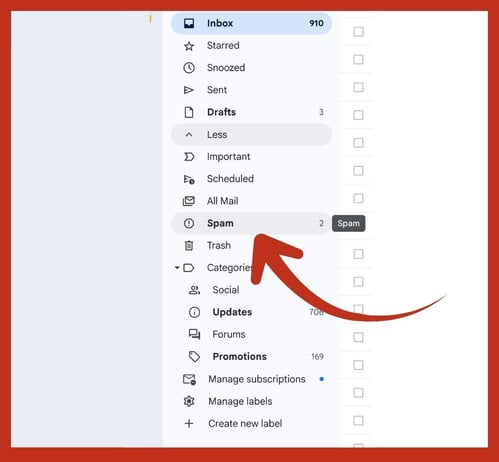
- Didn’t get the invitation email? Check your spam/junk folder.
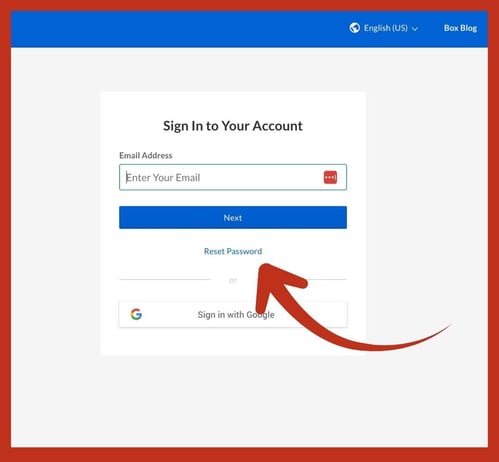
- Forgot your password? Use the Forgot Password link on the Box login page.
- Still stuck? Our team is happy to walk you through setup over the phone or via Zoom.
317-571-3600